
Have you ever turned on your smart TV, only to find your favorite streaming apps unavailable? Without an internet connection, services like Netflix, YouTube, and other online platforms cannot work properly. Fortunately, connecting your television is easier than many beginners expect. Most modern smart TVs support wireless Wi-Fi or wired Ethernet. Both options allow you to stream movies, watch online videos, and access useful entertainment apps.
However, the connection process varies by TV brand and model. Samsung, LG, Sony, TCL, and other televisions may have different menu settings. Choosing the right Network and entering the correct password are also important. A weak Wi-Fi signal can sometimes cause buffering or connection problems. That’s why understanding your available connection options makes a real difference.
How to Connect TV to the Internet Using Wi-Fi?
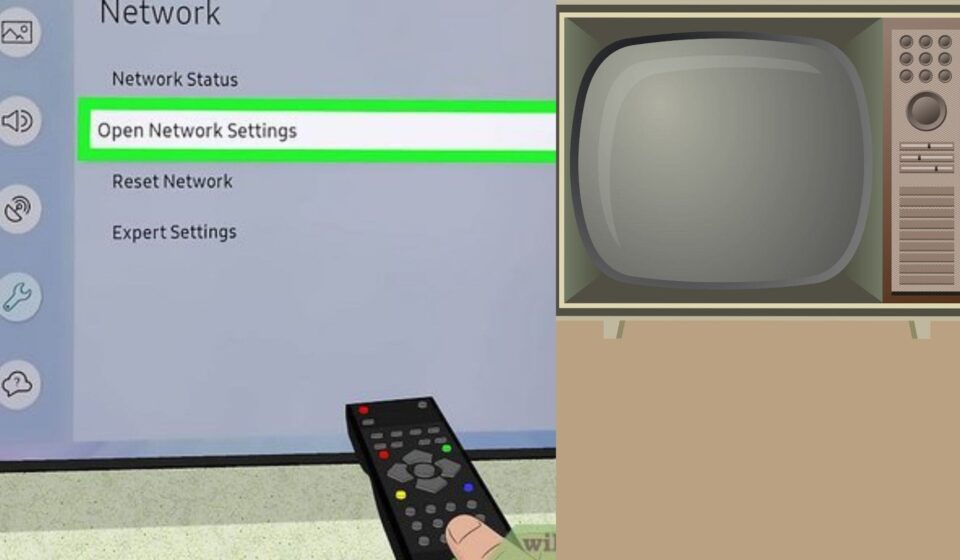
Wi-Fi offers the easiest way to connect most smart televisions. You won’t need additional cables or complicated equipment. First, turn on your TV and open its settings menu. Look for Network, Connections, or Internet Settings. Select the Wi-Fi option and let your television scan available networks. Choose your home network from the displayed list. Enter your Wi-Fi password carefully and select Connect. Your television should confirm the connection within a few moments. Open YouTube or Netflix to check whether everything works.
How to Connect Your TV to the Internet with an Ethernet Cable?
An Ethernet cable provides a direct connection between your TV and router. This option works particularly well for stable streaming and fewer interruptions.
Follow these simple steps:
- Find the Ethernet or LAN port on the back of your television.
- Connect one end of the cable to your TV.
- Plug the other end into a LAN port on your router.
- Open your television’s network settings.
- Select Wired Connection or Ethernet.
How to Find Network Settings on Different Smart TV Brands?
Different manufacturers organise their television settings differently. Knowing where to look can save you time.
- Samsung: Open Settings, select General, then Network.
- LG: Open Settings, choose All Settings, then Network.
- Sony: Open Settings, select Network and Internet, then Wi-Fi.
- TCL: Open Settings, choose Network and Internet, then Wi-Fi.
How to Connect a Non-Smart TV to the Internet?
Older televisions usually don’t support direct internet connections. However, you can still access streaming services through external streaming devices. Popular options include Amazon Fire TV Stick, Google TV Streamer, and Roku streaming devices. Connect your chosen device to your television’s HDMI port. Switch your TV to that HDMI input and follow the setup instructions. Connect the streaming device to your Wi-Fi network. You’ll then access compatible apps through its interface. Before purchasing anything, check your television’s available HDMI ports. Also, confirm that your chosen device supports your TV’s resolution.
Common Internet Connection Problems on Smart TVs
Sometimes, your television connects to Wi-Fi but struggles to access the internet. Other times, your TV might not detect your wireless Network. These problems usually involve incorrect settings, weak signals, or router issues.
Start by checking whether other devices can access the internet. If your phone also struggles, your router might need attention. Restarting your television and router can often restore connectivity. Also check your TV’s network status. Most smart TVs provide connection information through their network settings. This helps identify whether the problem involves Wi-Fi or internet access.
Fix Wi-Fi Connection, Password, and Signal Issues
An incorrect Wi-Fi password often prevents a successful connection. Double-check every character, including capital letters and special symbols. Also, make sure you’re selecting your actual home network.
If your television struggles to detect Wi-Fi, try these solutions:
- Move your router closer to the television.
- Restart your router and smart TV.
- Disconnect and reconnect your wireless Network.
- Check whether your router supports your TV’s Wi-Fi band.
- Update your television’s network software if available.
For example, a TV behind thick walls may receive a weak signal. Moving the router closer can noticeably improve connection stability.
How to Improve Your TV’s Internet Connection and Streaming Performance?
A successful connection doesn’t always guarantee smooth streaming. Your internet speed, router placement, and network traffic affect performance. Several devices sharing one connection can also reduce available bandwidth. Consider using an Ethernet cable if your router sits nearby. Wired connections often provide more stable performance than wireless networks. They’re particularly useful for watching high-quality videos without frequent buffering.
If Wi-Fi works better for your setup, improve your router placement. Keep it away from thick walls and electronic interference. You can also consider a Wi-Fi extender for distant rooms. Choose an internet plan that matches your household’s streaming habits. Higher-resolution videos generally require faster and more stable connections. These small improvements can make everyday television viewing much smoother.
Conclusion
Connecting your television to the internet opens up a much wider world of entertainment. You can enjoy streaming platforms, online videos, and other useful applications directly on your screen. Whether you choose Wi-Fi or an Ethernet cable, the setup process is usually straightforward. The right method depends on your television, router location, and connection preferences. If you have an older TV, a streaming device can give you access to modern entertainment services.